
Version 1.19 is out
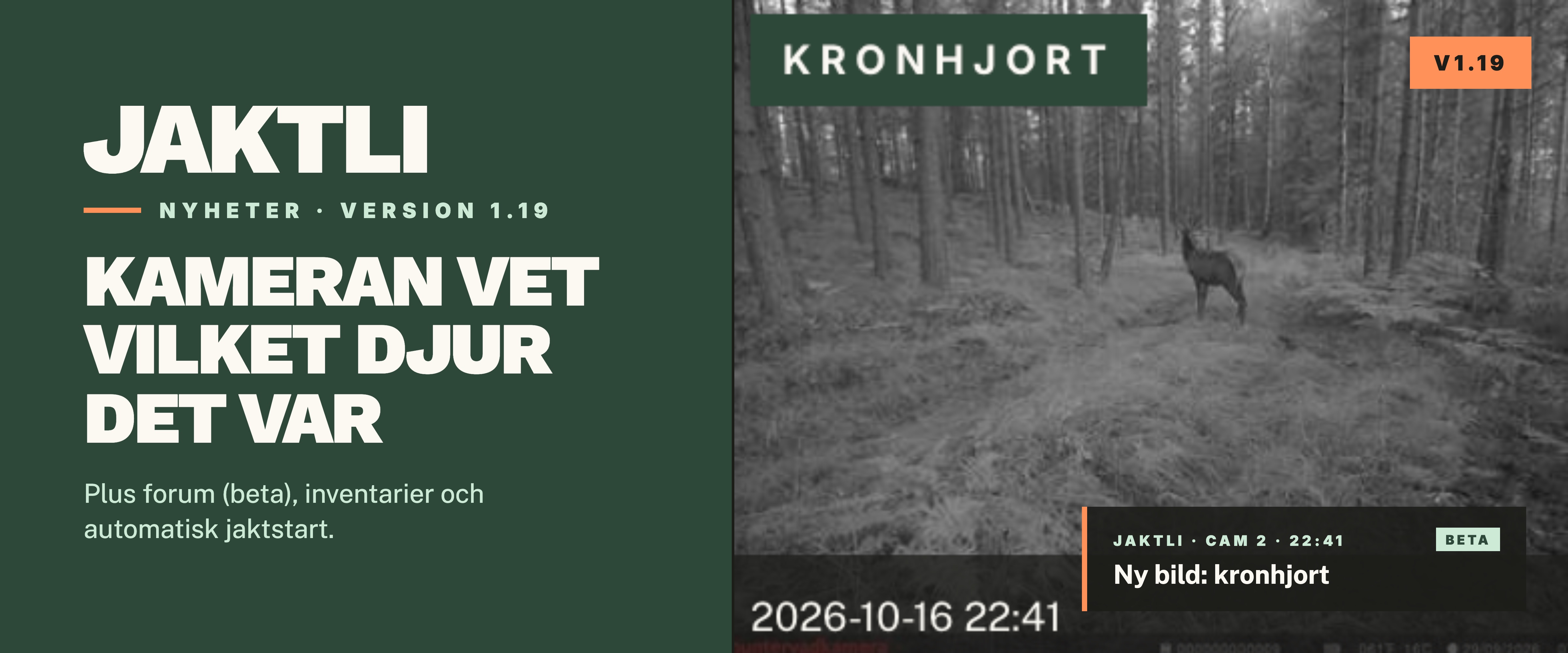
We have released version 1.19 of Jaktli. The big news is about trail cameras: Jaktli can now recognise the animal in the picture and name the species in the notification. You know whether it was a red deer or a fox before you open the picture, and you choose which species you want to hear about. The team also gets a forum and an inventory list, and planned hunts can start by themselves.
The trail camera knows which animal it was
The notification used to say only "new picture". Now Jaktli can look at the picture first and say what it shows, for example "New picture: red deer". It works for the common game species, and Jaktli also tells people and vehicles apart.
Species ID is off to begin with and is switched on one camera at a time. Whoever added the camera, or an administrator, does this:
- Open the camera under Game cameras
- Switch on Species ID
The notification arrives a few minutes later than before, because Jaktli looks at the picture first. If Jaktli does not recognise the animal, the notification still arrives, without a species.
The feature is new and we call it beta. Jaktli sometimes guesses wrong, especially on dark or blurred pictures, so open the picture if you are unsure. Do tell us if a species often comes out wrong. More in the manual.
Only the notifications you want
Once the camera knows what it saw, you can choose what to hear about. Open Profile, go to Notifications and look under Game cameras. The row Which pictures has three choices:
- All: as before, a notification for every new picture
- Only selected: a notification only when the picture shows something you picked
- All except: a notification for everything except what you picked
Pick species and categories under Species and categories. You can hear only about wild boar, for example, or about everything except people and vehicles. The choice covers both the phone notification and the email, and it applies only to you. The others in the team choose for themselves. More in the manual.
Forum
The team has a forum, where you talk about one thing at a time. Someone starts a thread, for example "Who takes the stand by the bog this year?", and the others answer under it. The chat scrolls past quickly and only administrators write on the notice board. In the forum the threads stay put, so you can come back in a week and read everything that was said.
Tap Forum on the home screen and then New topic. Write a title and your text, and add up to four pictures if you like. A thread with something new is in bold, and the number on the Forum tile shows how many such threads there are. You can tag team-mates and places with @, just as in the chat.
An administrator can pin a thread to the top, lock it, and archive it when it is done. The forum sends no notifications, so look in now and then.
The forum is beta too. Tell us if something is missing. More in the manual.
Inventory
Who has the chainsaw? How many feeders does the team own, and where are they? Under Inventory you keep a list of the team's things: towers, feeders, cameras, radios and tools. For each thing you see:
- how many you have
- who has it right now
- where it is, on the map or as a short text
- what it cost and what it is worth today
- whether it is available, on loan, broken or missing
Tap a marker on the map, a tower for example, to see which things are kept there. If the team has already entered the purchase under Expenses, the treasurer or an administrator can open the expense and tap Add to inventory, and the name, date and value are filled in for you.
At the top of the list are Excel and PDF. They give you the whole list with totals in one file, for the annual meeting or the auditor. More in the manual.
The hunt starts by itself
In some teams nobody remembers to start the hunt in the app, and then nobody shows on the map. An administrator can now switch on two things in team settings:
- Start planned hunts automatically: the hunt starts by itself at its start time, if at least one person has answered yes. Everyone who answered yes gets a notification.
- Join automatically for those who answered yes: anyone who answered yes joins the hunt and starts sharing their position as soon as the app is opened.
Both are off to begin with. Nothing starts by itself until a team administrator has switched it on in the team's Settings.
A phone cannot start sharing its position while the app is closed. The easiest way is to tap the notification that the hunt has started, which opens the map on the right hunt. If you would rather not join automatically, switch off Join planned hunts automatically in your profile.
When you start a hunt yourself, the planned hunts are now listed first, each with its own button. The red ongoing-hunt row on the home screen opens the map.
Share the meat equally
In the Harvest log an administrator can now share the meat equally between several people at once. Tap Share equally, tick the members and contacts who are sharing, and enter the number of kilos. Everyone gets the same number of whole kilos. If it does not divide evenly, the first people in the list get one kilo more.
Calendar
Whoever organises the hunt can write a note about a participant, for example "bringing a guest, approved". Tap the status next to the name in the participant list and choose Add note. Everyone in the team sees the note, under the name.
Map
The Terrain map now continues into Norway, using Kartverket's map. Handy if you hunt along the border.
Watch app
The Garmin watch app, version 1.9.0, has three new dog screens: arrows from you towards the dogs with the distance at each arrow, a list of distances, and tiles with one dog in each. With more dogs than fit, the screen pages by itself. Update the watch app in the Connect IQ store.
Other
- The species and person lists in the harvest log no longer end up under the keyboard.
- An imported marker can be renamed again.
- Team settings on the web can be saved even when the radio fields are empty.
- Plus smaller fixes and improvements.
Get in touch if something is not working. We read all feedback.