
Version 1.18 is out
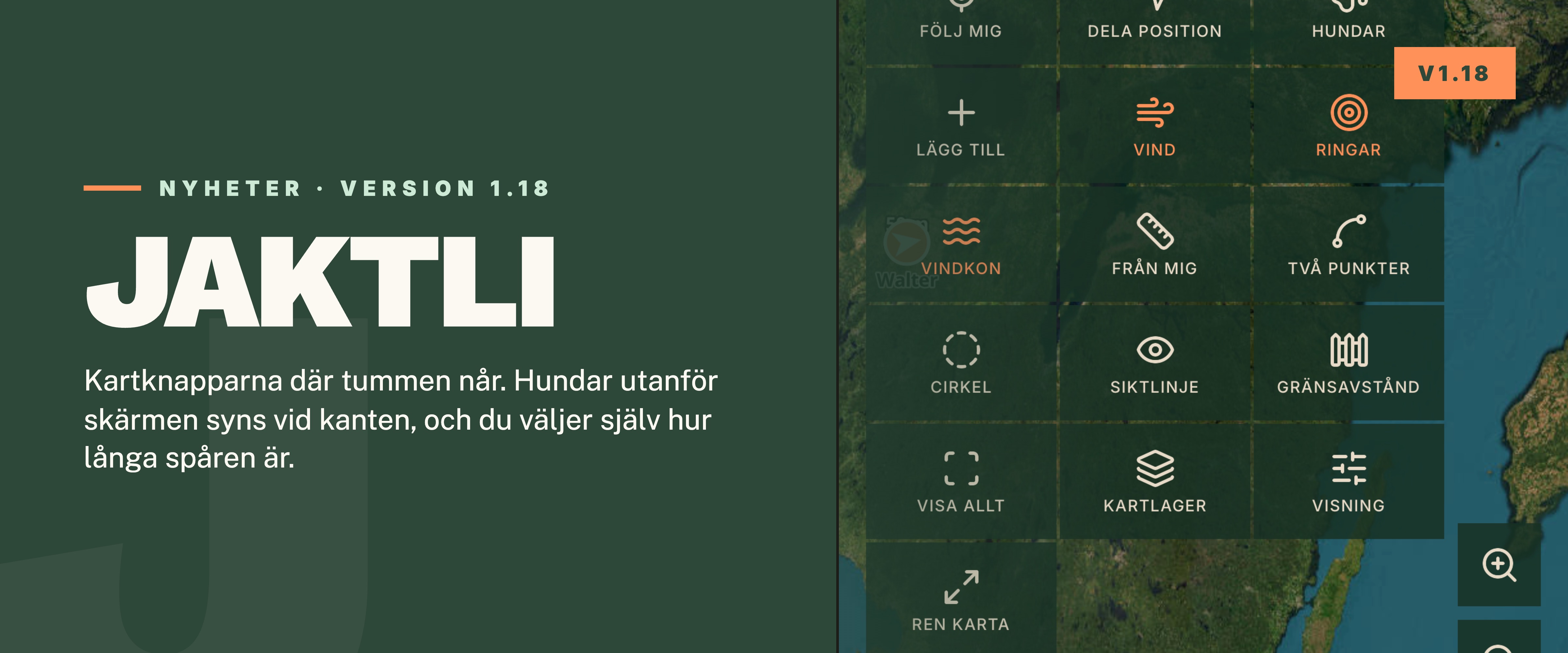
We have released version 1.18 of Jaktli. The big news is the map: the buttons now sit where your thumb reaches them, and every tool has a name so you no longer have to guess what an icon means. Pin the tools you use most, and if you are left-handed, move the whole column to the left. The map also shows an arrow towards the dog when it is off-screen, you choose how long the trails are, the hunt leader can answer for a team-mate in the calendar, and a drive's stands can be picked straight on the map.
Map buttons where your thumb reaches
Eleven small buttons used to sit in a column along the left edge of the map, with no text. They now sit at the bottom right, close to your thumb. At the bottom is Tools. Tap it and a grid unfolds with every map tool, each tile with a picture and a short name: Follow me, Share position, Dogs, Add, Wind, Rings, Scent cone, Hunt focus, the five measuring tools, Show all, Map layers, Display and Clean map. Wind, rings and the scent cone switch on and off right in the grid, which stays open so you can see what happens on the map. An orange number on Tools shows how many tools are switched on but folded away.
Pin the tools you use most to the button column. Hold a tile until it lifts and drag it to the right onto the column. An empty slot opens where it will land. Let go, and the tool stays in the column even when the grid is folded away. Drag a pinned button up or down to change the order, or off the column to remove it. Dogs, Share position, Add and Follow me are pinned from the start, so you keep the buttons you had.
Above the tools button sit the zoom buttons, and to its left the hunt buttons: Start hunt, and during a hunt the radio, the chat and the plus button for observations.
Left-handed? Open Profile, tap Personal information and choose left under Handedness. The tools button, the zoom, your pinned tools and the hunt buttons then move to the left edge of the map. The choice follows your account, so it applies on all your phones. More in the handbook.
The dogs
When a dog is off-screen during the hunt, an arrow now appears at the edge of the map in the dog's colour, with the dog's name and distance, for example "Saga · 850 m". The arrow is hollow, so you can tell a dog from a hunter at a glance: the hunters' arrows are filled. If the dog has not sent a position for a while, the arrow turns grey. Arrows show for dogs within three kilometres. They do not affect the no-shoot markings and never make the phone vibrate. If you would rather not see them, turn off Show direction to dogs under Hunt in the map filter.
The dog now also shows on the map outside a hunt, as long as you have the map or My Dogs open in Jaktli. The Receive outside a hunt switch on the tracker card is gone; it is no longer needed.
Choose how long the trails are
A trail is drawn behind every hunter and dog. You now choose how far back the trails reach, separately for your own trail, your team-mates' and the dogs'. Open the map Filter and, under Hunt, tap Off, 5, 15, 30 or 60 on the rows My trail, Others' trails and Dog trails. The numbers are minutes. The last 15 minutes show from the start, as before. A longer trail shows where the dog has been over a longer stretch, a shorter one keeps the map calmer. The choice is saved on the phone.
Observations
After a season there are many observations on the map. Under Observations in the map filter there is now Show observations from: Today, 7 d, 30 d or All. The observations stay, only hidden on your map. During a live hunt the hunt's own observations always show. Tap an observation and it now says who added it and when.
Border distance
A new measuring tool, Border distance, shades a band inside the hunting area border, so you see which ground lies close to the neighbour's. It suits placing a feeding site or bait some way from the border. The band is 200 metres wide to begin with, and you change the distance 50 metres at a time with − and + above the grid. The band stays while you measure, move markers or do other things on the map, and the app remembers the distance for next time. If the team has several hunting grounds edge to edge they count as one, so there is no band between them.
Calendar
Sometimes the hunt leader knows someone is coming even though they have not answered in the app. An administrator, the event's creator or the hunt leader can now answer for them. Open the event, tap the status next to the name in the participant list, for example Has not answered, and choose Mark as attending or Mark as declined. Under the name it says Answer set by and who answered, so everyone can see it was not the person themselves. If the person later answers in the app, that text disappears.
Whoever creates or edits an event can set Respond by, a date and time the team should answer before. It shows on the event, in the calendar list for those who have not answered yet, in the message about the new event and in the subscribed calendar. It is only a reminder: you can answer afterwards too, and nothing locks.
Pick stands on the map
In the stand planner you could only pick a drive's stands from a list. Now you tap Map next to Choose stands and tap the stands straight on the map. Picked stands get an orange ring. Tap once more to remove a stand, and Save when you are done. On the web the same choice sits as List and Map at the top of the window.
Chat
If you leave the chat before sending, the text is still there when you come back. Every room keeps its own text, even if the app is closed.
When someone writes GPS coordinates in a message, for example
59.3293, 18.0686, they become a link. Tap it and the spot shows with an
orange dot on the map. An MGRS grid reference, for example
34V CL 3323 8039, becomes a link too: the map zooms in on the square and
blinks it a few times so you can see where it is.
If you have copied a picture, a screenshot for example, tap the image icon and choose Paste image. On a computer, paste the picture straight into the text field.
Hunt log
The distance in the hunt log is now split into on foot and by car, for every hunter and dog. A hunter counts as driving when the speed is above 29 km/h for at least 20 seconds, a dog when it lasts at least a minute. So a stand you drove to no longer counts as a walk.
The distances are worked out once, when the hunt ends, instead of every time the log is opened. That is why the hunt log opens much faster, for big hunts too, and the trails are fetched only when you play the hunt back or drag the timeline. With Show all and Hide all you switch every hunter's or dog's trail on or off at once, and above the dogs it says how far they ran together.
Watch app and tracker
The Garmin watch app, version 1.8.0, uses far less battery on the watch. It used to redraw the screen for every signal from the collar; now only when the dog has actually moved. Update the watch app in the Connect IQ store.
The phone that receives from the watch lasts longer too. It sends the dog's positions to the team in batches every ten seconds instead of one at a time, and skips positions that have not changed. More in the handbook.
Markers
New marker type: Tree stand, with its own pin on the map. It counts as a stand in the stand planner, in bookings and when you look at what can be seen from a tower. The ground blind has a new Swedish name, Butchery has its own icon, and when you pick a type the list is sorted into groups: stands and towers, feeding and game, equipment, places, roads and barriers.
New to Jaktli
Whoever signs in for the first time now gets a guided start: what you want from Jaktli, a profile with a picture, dogs, weapons and hunting papers, step by step. Every step can be skipped, and what you skipped stays as the Finish your profile row on the home screen until it is done. To see the introduction again, tap Show the introduction again on the profile page.
Whoever creates a new team gets a getting-started list in the same way: the team's details, the map from your old app or a file, invitations and the first hunt. The list sits as the Get the team started row on the home screen, with how many steps are done.
On the web
- Trail length and Show observations from are in the map filter on the web too.
- Handedness is chosen under Preferences on the profile page, next to the language.
- jaktli.se now has a comparison of Jaktli, WeHunt and Garmin Alpha, and the hunting seasons for every species and county, open to everyone.
Other
- Notifications have their own page on the profile, and personal information sits behind its own card.
- The observation filter on the map now applies during a live hunt too.
- A tower's visible area is worked out faster.
- Plus smaller fixes and improvements.
Let us know if anything is giving you trouble. We read all feedback.